How to connect a chatbot to WooCommerce order status
Set up a WooCommerce REST API Custom Action while checking internal order IDs, visitor identity and access to the specific order.
A specific order is not part of your public store content or product feed. Breezaro can fetch it with a Custom Action connected to the WooCommerce REST API. This setup needs secured API access and a check that the visitor is allowed to see the requested order. Custom Actions are available from Pro and during the trial.
The WooCommerce API returns an order status such as “processing” or “completed”. Carrier tracking is a separate piece of data and needs its own source.
What you will need
- WooCommerce admin access and an API key with Read permission.
- Time to test both allowed and denied requests.
- A way to verify the customer's identity and their access to the specific order.
Step 1: Create a WooCommerce REST API key
In the admin, open WooCommerce → Settings → Advanced → REST API and add a key for a user who may read orders. Set its permission to Read. Store the Consumer key and Consumer secret securely; the secret is not shown again after creation. See the official WooCommerce REST API documentation.
Step 2: Prepare the action template in Breezaro
Open Custom Actions in the dashboard and choose the Order status (WooCommerce) template. Check the HTTPS URL, GET method, secret credentials and response fields that reach the assistant. The template is a starting point, not a complete customer authorization flow.
The example path /wp-json/wc/v3/orders/{{orderNumber}} expects the internal order ID used by the API. If the number shown to your customer differs, do not assume the values match. You need a secure lookup or mapping in your own endpoint.
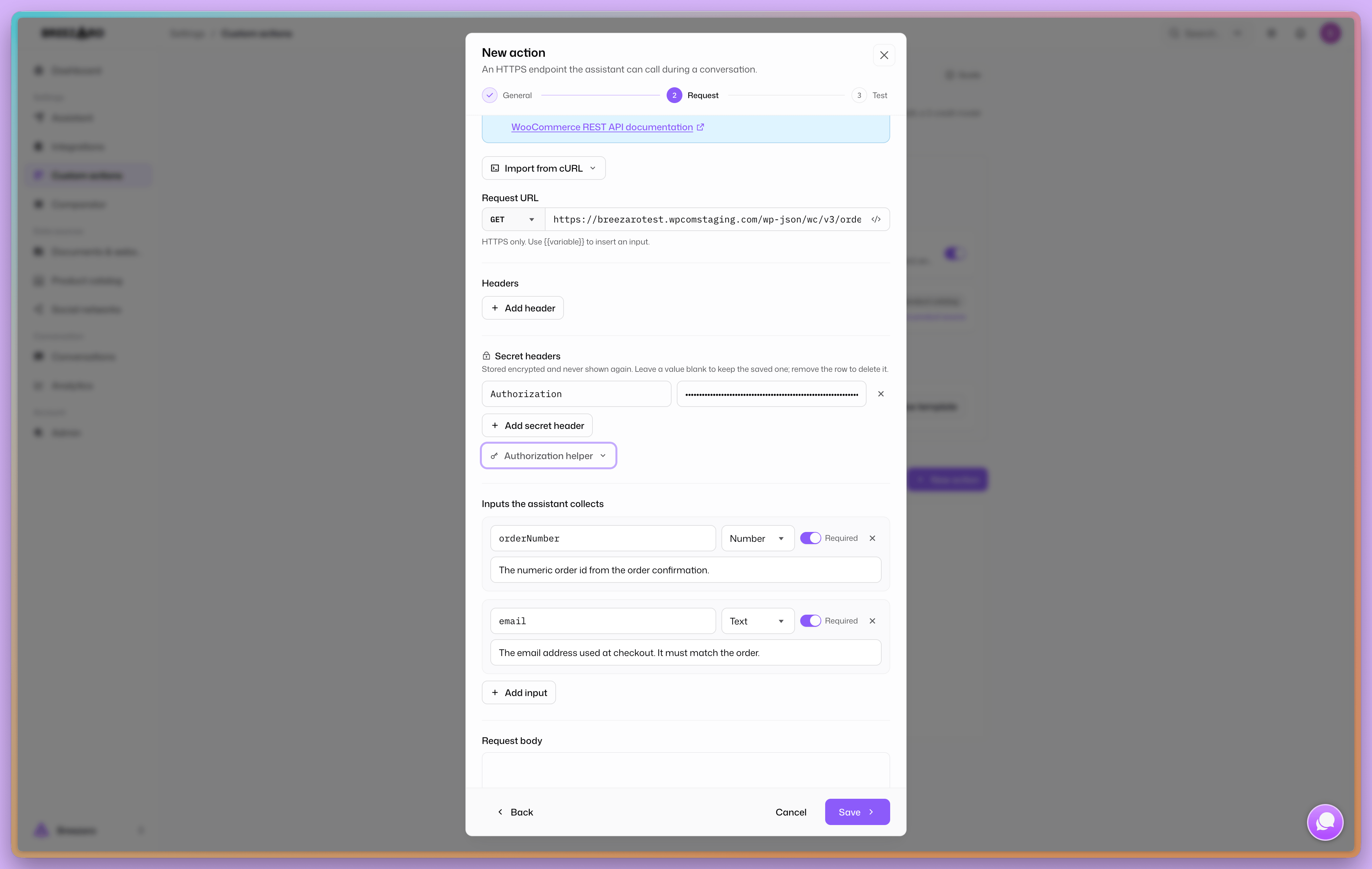
Step 3: Bind the result to an authorized visitor
The template can compare a supplied email with the returned order's billing email. An email typed into chat does not by itself verify identity. For an account holder, use email-code verification or signed identity and match the order against verified {{visitor.email}}. The “Requires verified visitor” switch alone is insufficient unless the action also limits the returned record to that identity.
If the customer checked out without an account, verify their email with a one-time code and match the verified address to the order's billing email. If you instead use an order number plus another detail such as a delivery postcode, check both before returning private data, limit repeated attempts and evaluate whether those factors are strong enough for the fields you expose. Offer a human handoff when access cannot be established. See ownership checks and verified visitors.
Step 4: Test denials too
Test the correct order, someone else's order, an incorrect email or second detail, and a nonexistent number. Confirm that the assistant receives no private data on a mismatch and only the necessary fields on success. The editor requires a passing test before the action can be enabled, but one passing test does not establish authorization for every request.
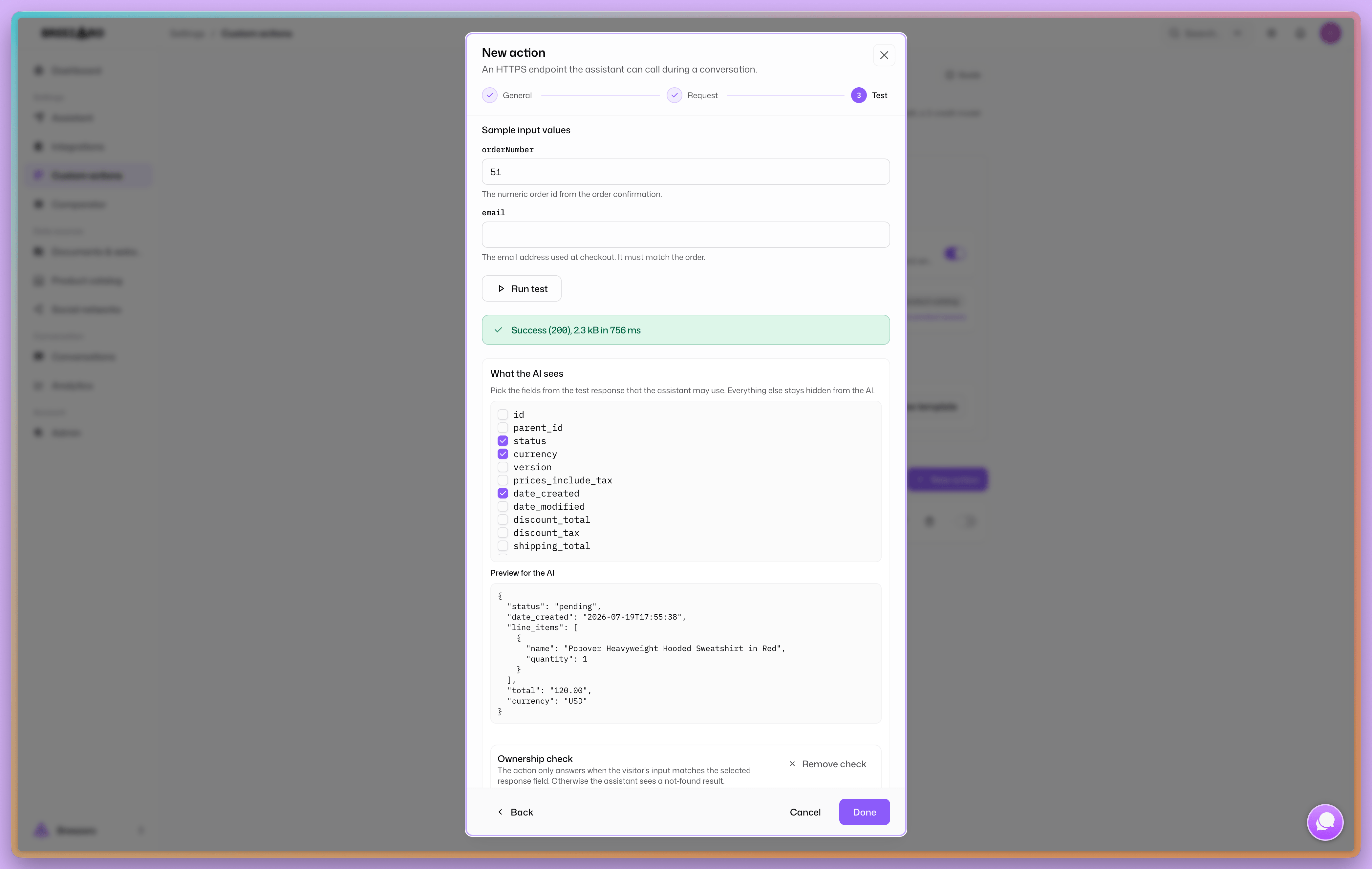
After enabling the action, review errors and ambiguous requests. If the record cannot be assigned safely, offer a human handoff.
Security and credits
Breezaro restricts actions to HTTPS and public addresses, stores secret headers encrypted and lets you select only the response fields needed. Use a Read-only API key for order status. These controls do not replace authorization in your endpoint or the action's ownership check.
A Custom Action call adds credits according to the selected model's rate. Current rules and limits are in the Custom Actions documentation and pricing.
What's next
See the full ecommerce support workflow. If you also use a product catalog, its prices and availability refresh through source synchronization, independently of this order lookup.