Get an instant overview of your chatbot's activity
Activate Web Push notifications and get an instant overview of the conversations your LLM chatbot is having. Even if you're not at your computer or don't have our application open, you'll know about every new interaction. This gives you a complete overview of your customers' activity without having to constantly check anything.
How to do it? Easy activation in 4 steps
The whole process is very fast and you can do it in under a minute on standard computers and Android devices.
Step 1: Go to settings
In the main menu of your administration, click on "Account Settings", where you will see the "Notifications" section.
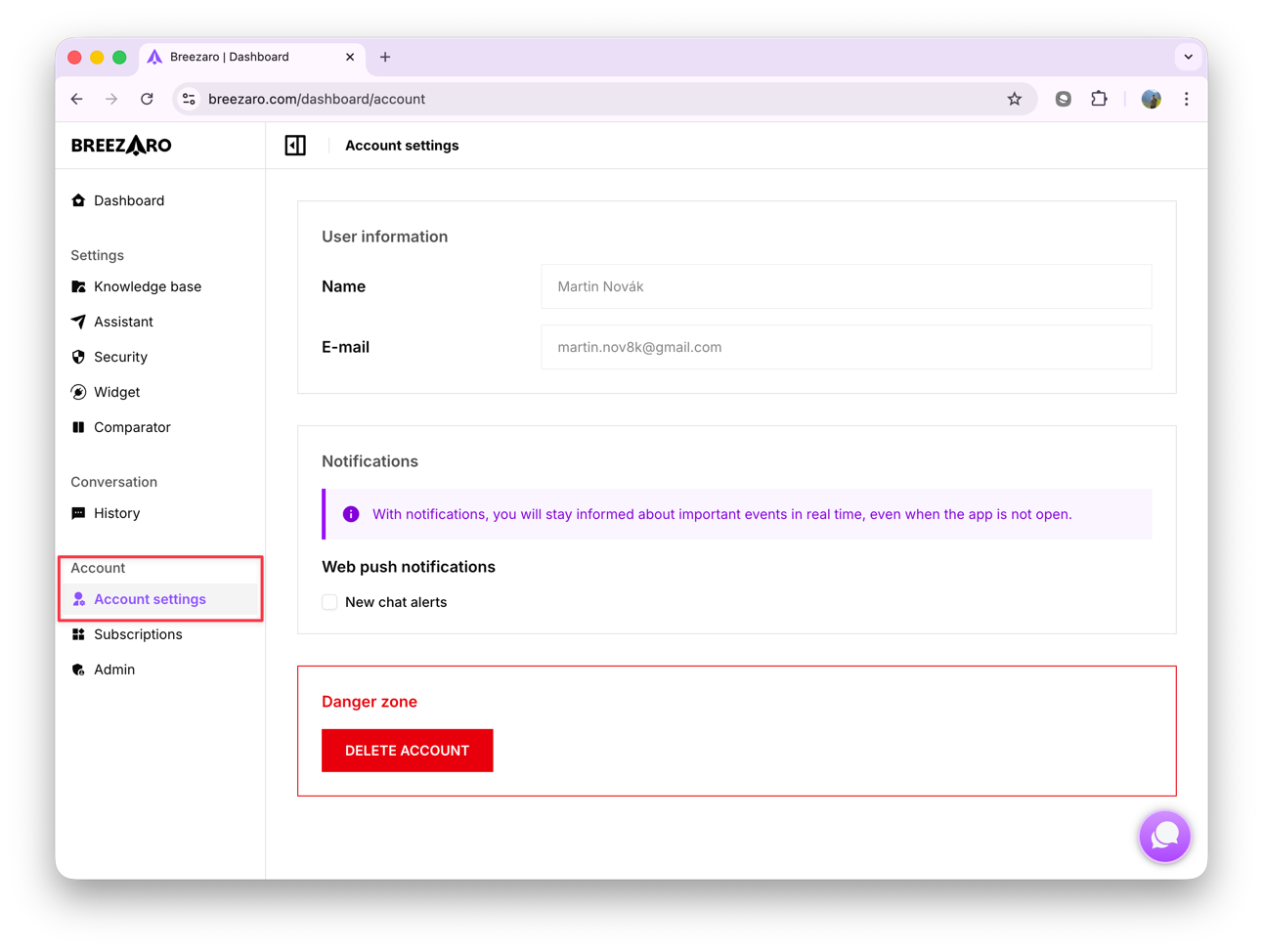
Step 2: Turn on notifications
Activate web push notifications by toggling the switch. Once enabled, you can customize which types of notifications you want to receive.
Available notification types:
- New chat messages – Receive alerts when a visitor starts a new conversation or sends a message that requires operator attention.
- Crawl complete – Get notified immediately when the website crawler finishes importing new pages into your data source.
- Retraining complete – Receive a confirmation when the chatbot finishes retraining on your updated content and is ready to use.
- Social media sync complete – Get notified when the synchronization of posts from your connected Facebook or Instagram pages is completed.
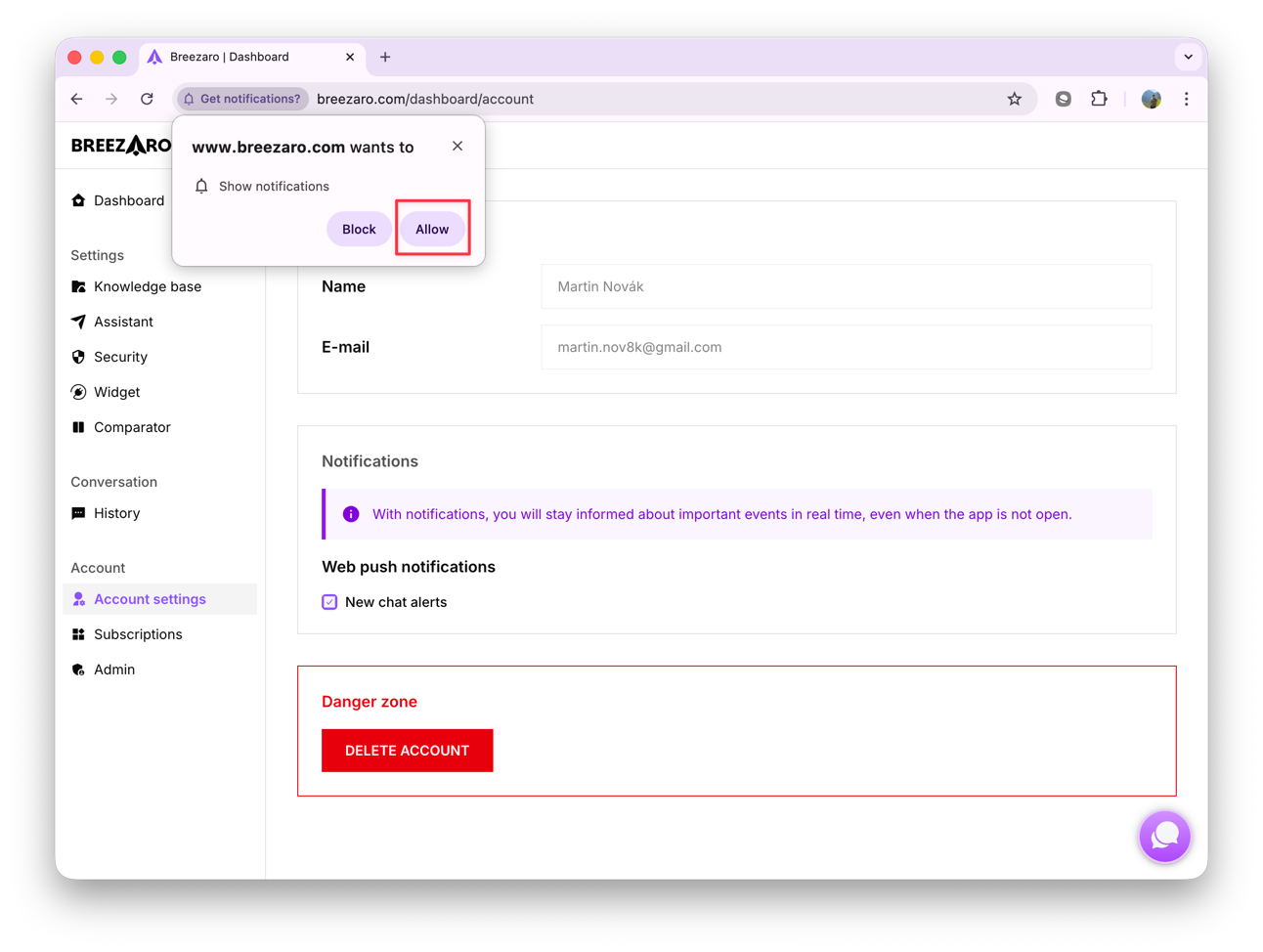
Step 3: Allow notifications in your browser
Immediately after activation, a permission request will appear at the top of your browser. For the feature to work correctly, you must click the "Allow" button.
Done, you're all set! 🎉
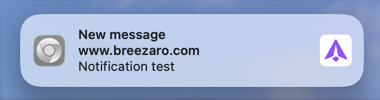
Congratulations! From now on, you will receive notifications about new messages. You can try it out by sending a test message from your chatbot.
Setup for Apple devices (Mac, iPhone, iPad)
Mac computers (macOS)
On Apple Mac computers, the procedure is exactly the same as in the guide above. After enabling the feature in the settings, your browser (Safari, Chrome, or Firefox) will ask for your permission. Just click "Allow" and the notifications will be active.
iPhone and iPad (iOS / iPadOS)
Apple supports web notifications since iOS 16.4. For them to function correctly, one extra step is required – adding our application to your Home Screen.
1. Add the app to your Home Screen: In the Safari browser, open our application. At the bottom of the toolbar, tap the "Share" icon (the square with an arrow pointing up) and select the "Add to Home Screen" option from the menu.
2. Activate notifications: Now, open the application using the new icon on your Home Screen. Then follow the main guide above – turn on notifications in the settings and in the dialog box that appears, tap "Allow".