Teams
Teams let you invite teammates to work on your bots together — sharing the inbox, live chats and settings, all on your plan.
What is a team?
A team is a shared workspace that groups one or more of your bots and lets you invite teammates to work on them with you. Everyone on the team sees the same bots, the same inbox and the same conversation history.
Billing always stays with you, the owner. Teammates never see your plan or payment details and are never charged. Teams are included in every plan except Basic, and your plan decides how many seats you can fill.
Roles & permissions
Every teammate has exactly one role per team. Here is what each role can do.
| Capability | OwnerYou — the billing account | EditorFull rights, without billing | OperatorLive chat + read-only views |
|---|---|---|---|
| Work on the team's bots — inbox & history | |||
| Take over live chats with their own name & avatar | |||
| View bot settings & documents | View only | ||
| Invite & manage members (roles, pause, remove) | |||
| Rename the team, add or remove bots | |||
| Release a live chat another operator is holding | |||
| Billing, subscription & plan | |||
| Delete the team |
Create a team & add bots
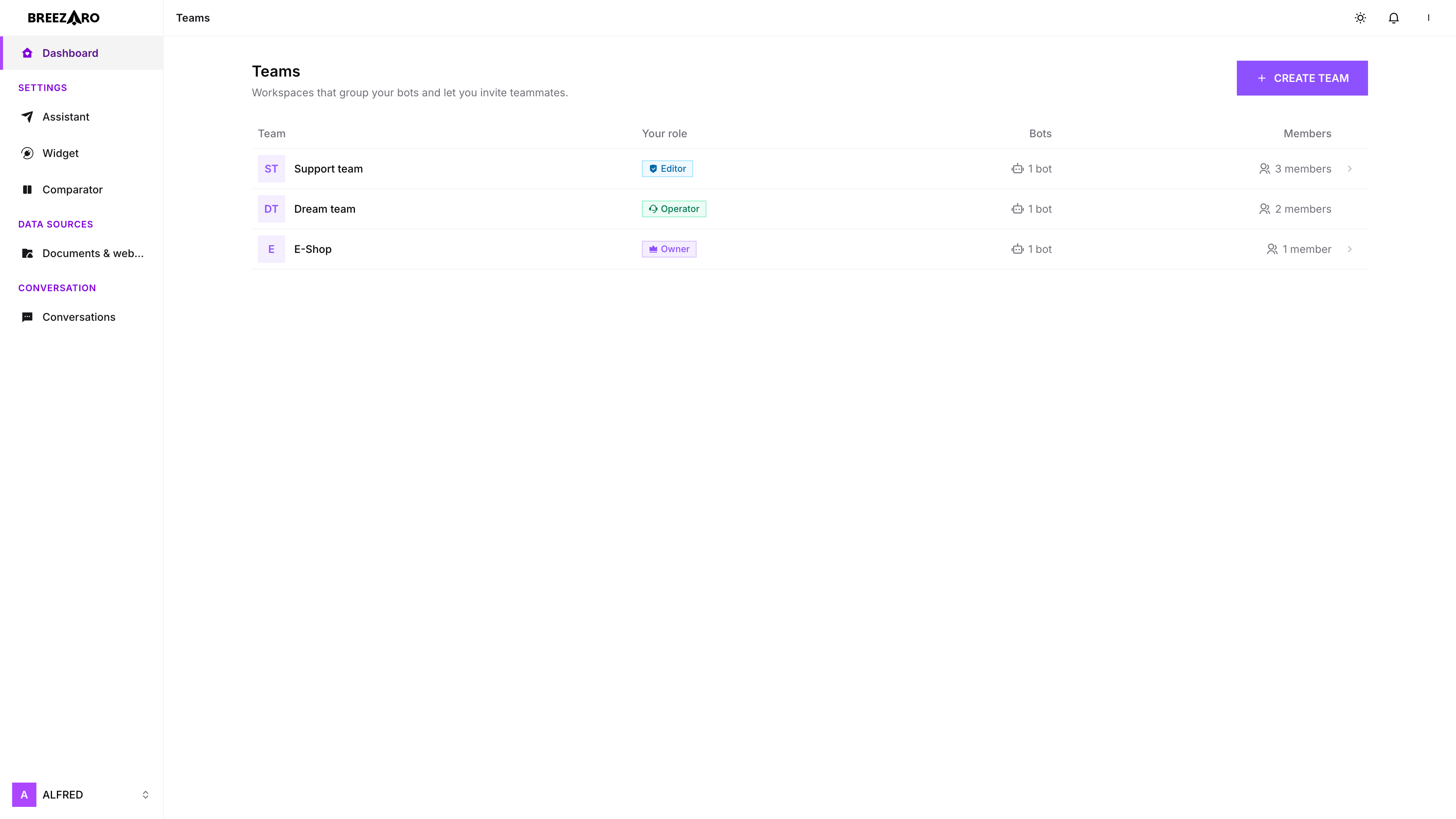
You manage teams from the menu under your avatar (top-right of the dashboard). Create a team, then move the bots your teammates should work on into it.
- Create a teamOpen the menu under your avatar (top-right) and choose Teams, then Create team. Give it a name like “Support” — you can rename it any time.
- Add your botsAdd an existing bot to the team, or create a new one inside it. A bot can belong to one team at a time; you can move it back to personal whenever you like.
- You are the ownerThe team is created with you as its Owner. You can now invite teammates from the Members tab.
Invite teammates
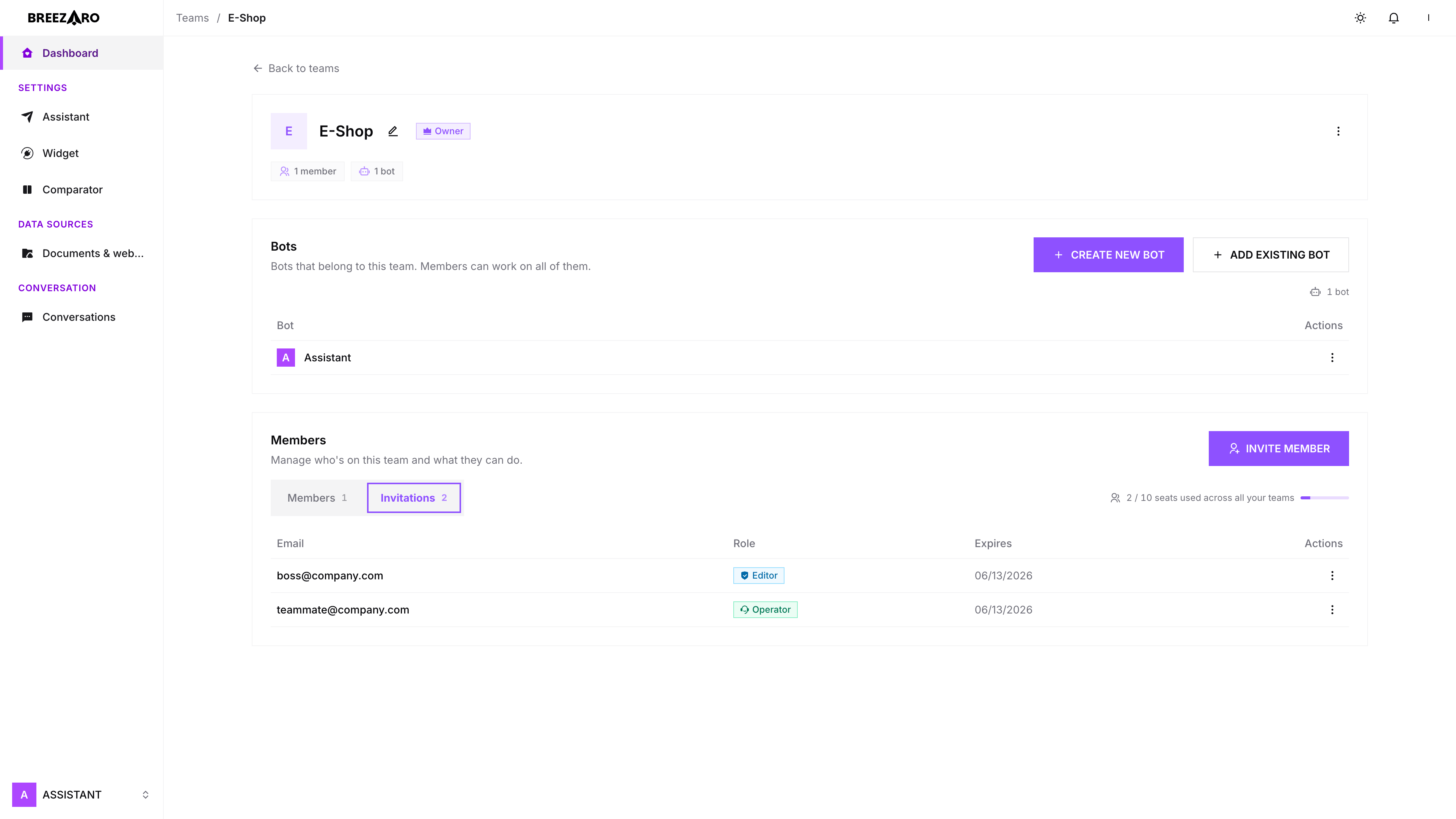
Invitations are sent by email. Add a bot to the team first — you can't invite anyone to an empty team.
- Open the Members tabOn the team's page, switch to Members and choose Invite member.
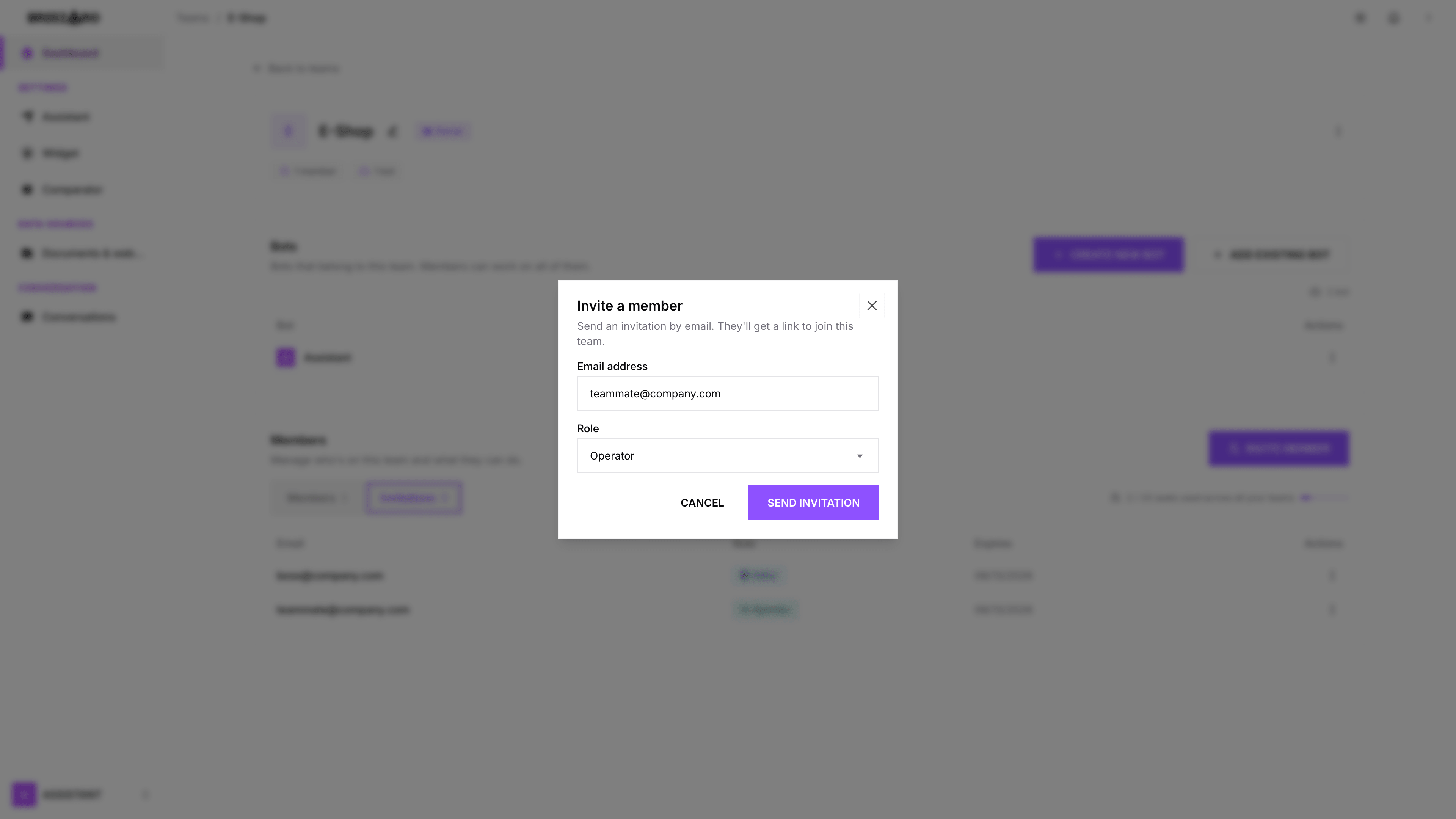
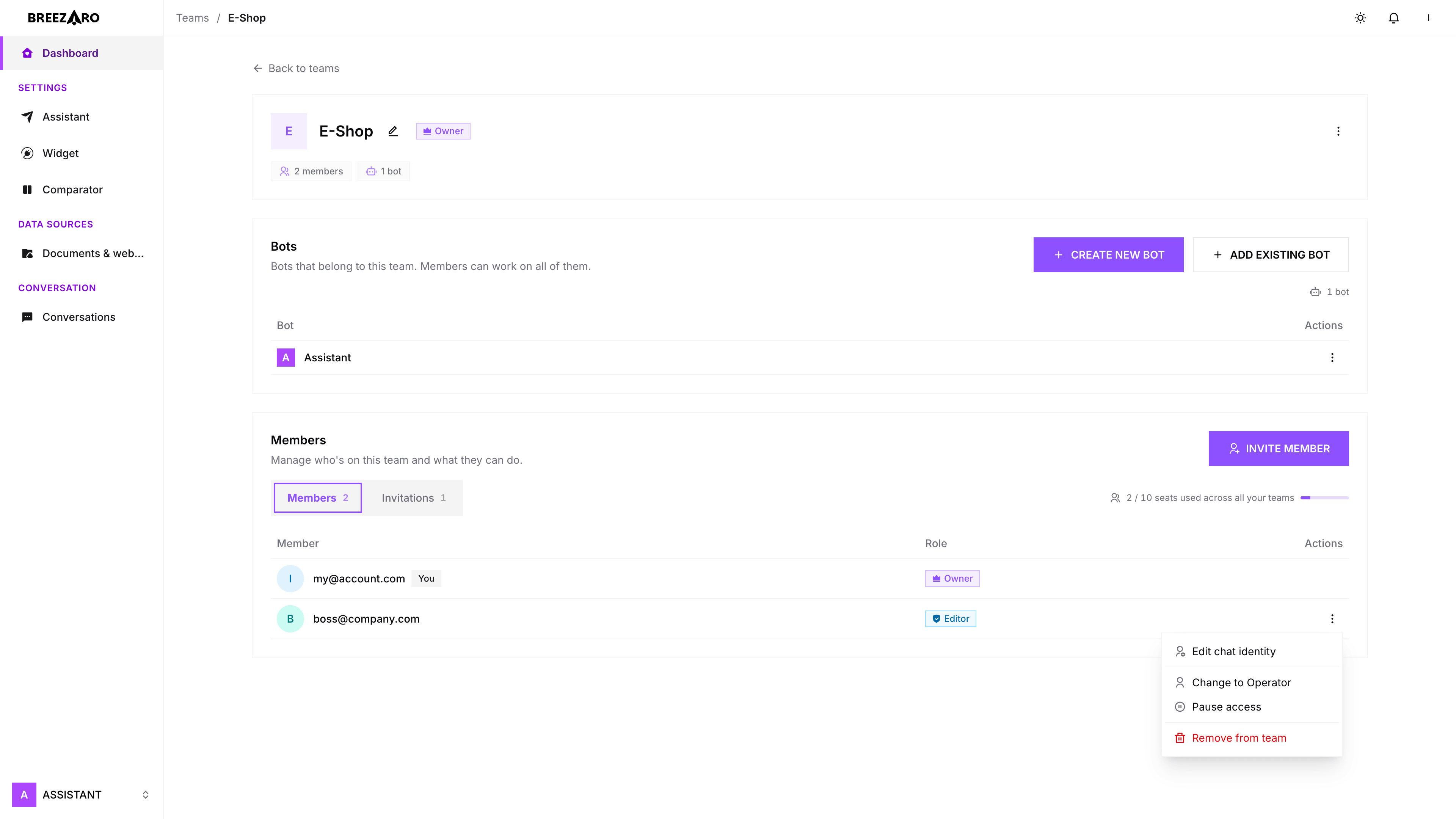
- Enter an email and pick a roleType the teammate's email address and choose Editor or Operator. (Owner can't be assigned — there is always exactly one owner.)
- Send the invitationSend it, and the invite appears under Pending invitations. The link expires after 7 days, and you can revoke it any time before it is accepted.
Accepting an invitation
Here is what your teammate sees after you send the invite.
- Open the emailYour teammate receives an email naming you, the team and their role, with an Accept invitation button.
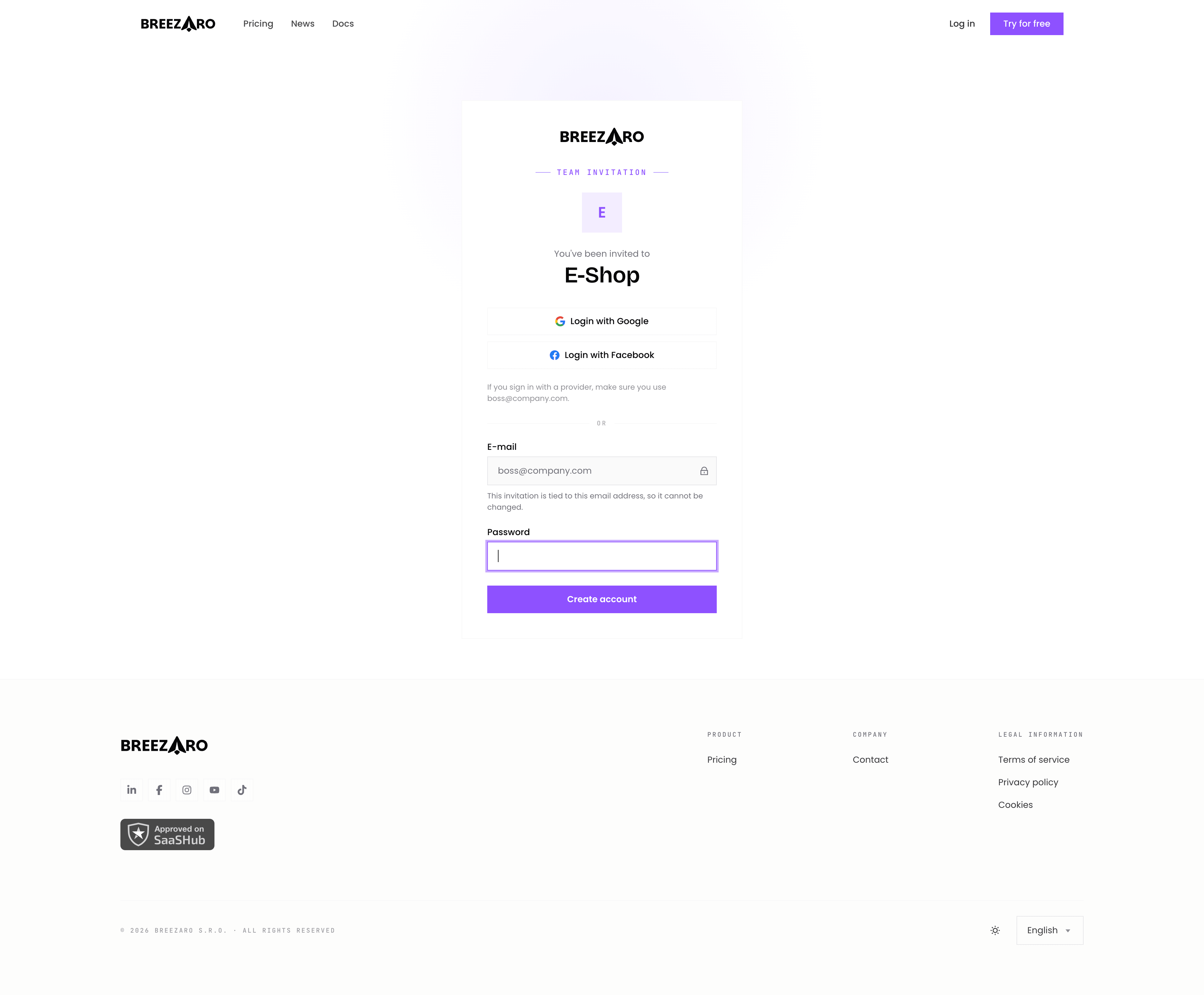
- Confirm the invited emailThe accept screen is locked to the invited address. They must sign in or register with that exact email — invitations can't be transferred to another address.
- Sign in or create a passwordNew teammates set a password (or use a sign-in provider) and verify their email; existing users just sign in.
- Land in the dashboardOnce accepted, they go straight to the dashboard with access to the team bots. No bot, trial or billing of their own is created.
Live chat handoff & the single-operator lock
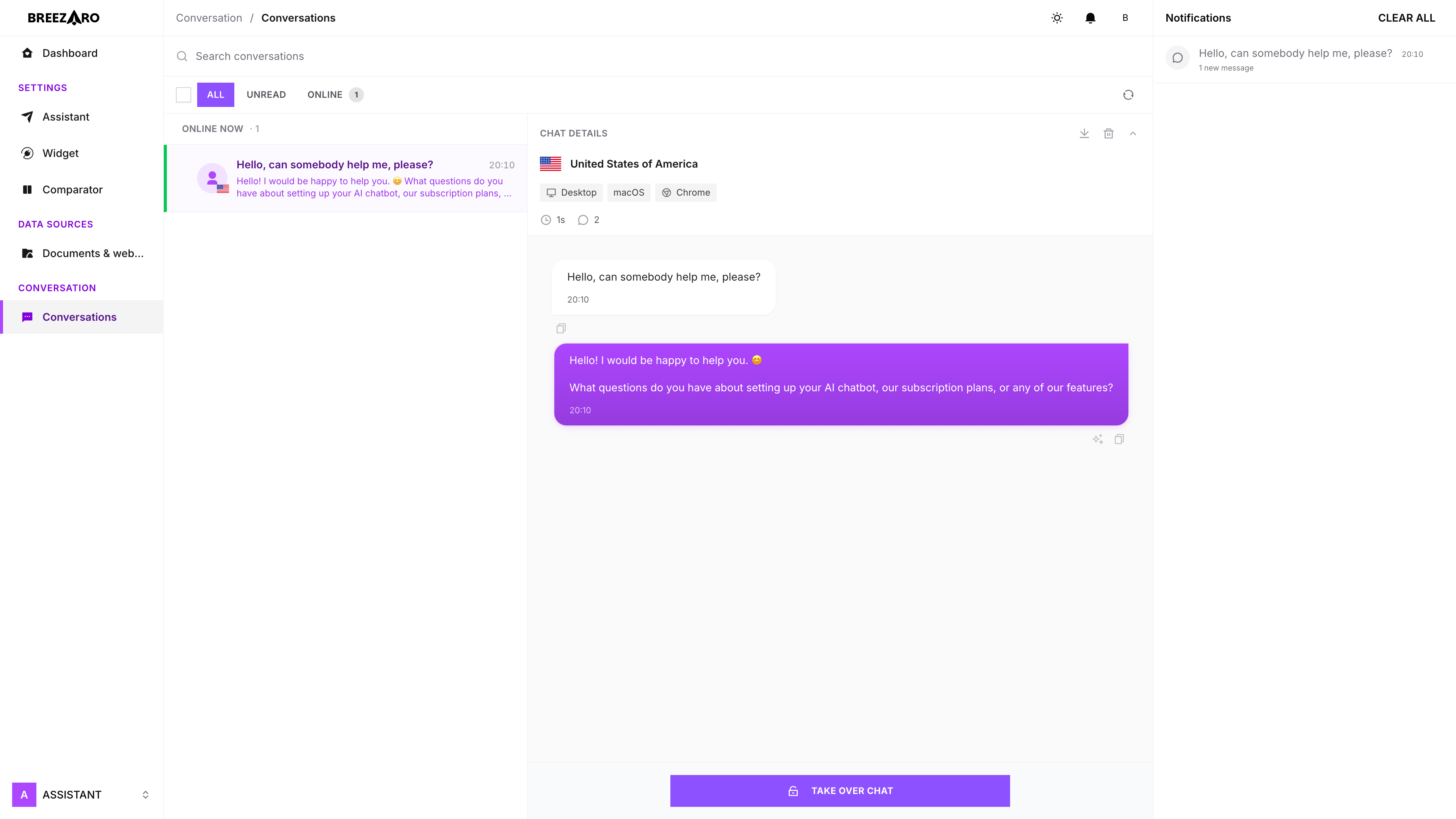
Any teammate with access can step into a live conversation and reply as a human. To keep handoffs clean, only one person can hold a chat at a time.
- From the inbox, a teammate takes over a conversation and the bot steps aside while they reply.
- While someone holds a chat, no one else can take it — others see who's currently handling it.
- If the operator closes every tab or loses connection, the chat is released back to the bot automatically after a short grace period.
Their own chat identity
Each teammate can set the display name and avatar visitors see while they are handling a chat — for example “Jane from Support”. If they leave it blank, their account name is used.
Managing members
Owners and Editors manage the team from the Members tab.
Seats & your plan
Teams are available on every plan except Basic. The number of teammates you can invite depends on your plan's seats.